Halo UI SDK for Android




Add a dependency, make four calls, and your app can take a card payment. The SDK owns everything in between: amount entry, the card-reading screens, the PIN pad, the result screen and the receipt. It is built with Jetpack Compose and designed to be driven from a Flutter or React Native host just as easily as from Kotlin.
Contents
Installation · Quick start · HDConfig · Taking a payment · Presentation · Theming · Languages · Currencies · Permissions · Build configuration · Inbound payments · Push to Terminal · Telemetry
What you get
- The whole payment UI. Amount entry, card-reading animation, PIN, success and failure screens.
- Your branding. Light and dark colour schemes, a ramp of up to four colours, corner radius, type sizes and your own logo, stated once as a file in your build. Tell the SDK which mode your app is showing and the payment screens match it.
- Digital receipts. The Halo kernel emails or texts the cardholder's receipt against the transaction's own reference.
- Payments that arrive from outside. App-to-app intents, payment links and pushed payments are handled natively by the SDK, with no host code involved.
- DebiCheck mandates. A TT3 debit-order mandate arrives through the same doors and runs the same tap flow.
- Seven languages, following the device by default, narrowable to the ones your app speaks, and every string overridable per brand. Tell the SDK what your own language picker chose and the payment screens follow it.
- Cross-runtime friendly. A brand stated as a file and a suspending token callback, so a Flutter or React Native host bridges four values, not a config object.
- Optional telemetry. Off by default. Switched on, the SDK reports its own operations and crashes into your Firebase project and never anything about the payment.
Dynamic Currency Conversion is implemented but not yet switchable: nothing public sets it while the flow is reworked. See DCC.
Requirements
- Android 10 (API 29) or higher
- A Halo SDK token, issued by Synthesis/Halo
- A
ComponentActivity(or a subclass such asAppCompatActivity) to host the SDK
Installation
Building in Flutter? Use the
halo_sdk_uiplugin instead of the steps below. It declares this library for you, bridges every call to Dart, and its README covers the two lines ofMainActivitycode and the Gradle repository a Flutter host still needs. What follows is for a Kotlin host. The brand file and everything under Inbound payments apply to both.
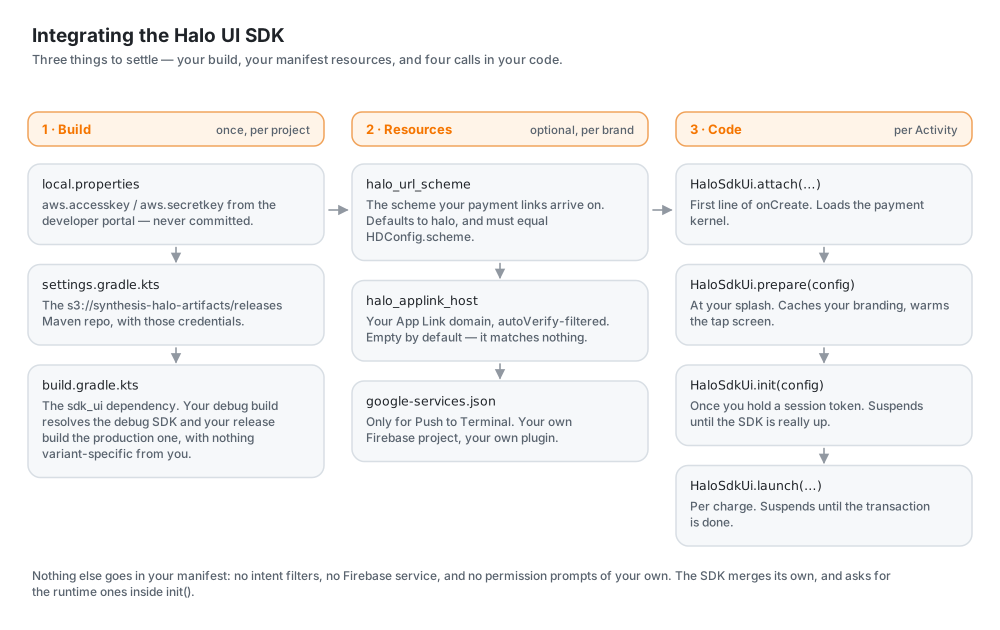
1. Add your credentials
Registering on the developer portal gets you an AWS access key and secret. They are sensitive, so keep them out of source control. Put them in local.properties:
aws.accesskey=< PROVIDED IN EMAIL >
aws.secretkey=< PROVIDED IN EMAIL >
Temporary credentials, such as an SSO session's, carry a third value as well. Add it as aws.token, and replace all three when the session expires; S3 answers an expired one with ExpiredToken. CI has no local.properties and exports the same three as AWS_ACCESS_KEY_ID, AWS_SECRET_ACCESS_KEY and AWS_SESSION_TOKEN, which the snippet below falls back to.
2. Add the repository
In settings.gradle.kts:
import java.util.Properties

val localProperties = Properties().apply {
    val localPropertiesFile = rootDir.resolve("local.properties")
    if (localPropertiesFile.exists()) {
        localPropertiesFile.inputStream().use { load(it) }
    }
}

fun haloCredential(property: String, environmentVariable: String): String? =
    localProperties.getProperty(property)?.takeIf { it.isNotBlank() }
        ?: System.getenv(environmentVariable)?.takeIf { it.isNotBlank() }

dependencyResolutionManagement {
    repositories {
        google()
        mavenCentral()
        listOf("releases", "snapshots").forEach { repository ->
            maven {
                name = repository
                url = uri("s3://synthesis-halo-artifacts/$repository")
                credentials(AwsCredentials::class) {
                    accessKey = haloCredential("aws.accesskey", "AWS_ACCESS_KEY_ID")
                    secretKey = haloCredential("aws.secretkey", "AWS_SECRET_ACCESS_KEY")
                    sessionToken = haloCredential("aws.token", "AWS_SESSION_TOKEN")
                }
            }
        }
    }
}
releases holds the published versions and snapshots the candidates. A build that pins a released version never reaches the second.
3. Add the dependency
dependencies {
    implementation("za.co.synthesis.halo:sdk_ui:0.0.37")
}
One coordinate covers both variants. Gradle picks the debug SDK for your debug build and the production SDK for your release build from the module metadata, so you declare nothing variant-specific.
That pairing follows the build type, and the kernel you talk to is a separate choice. The debug SDK is the one that talks to the sandbox kernel. So a release build meant for sandbox, such as a signed QA build you hand to testers, resolves the production SDK and fails at its first transaction rather than at compile time. If you ship builds like that, force the debug artifact for them:
val sandbox = true  // however your build knows which kernel it is for

if (sandbox) {
    configurations.all {
        resolutionStrategy.eachDependency {
            val version = requested.version.orEmpty()
            if (requested.group == "za.co.synthesis.halo" && requested.name == "sdk" &&
                version.isNotBlank() && !version.endsWith("-debug")
            ) {
                useVersion("$version-debug")
                because("a sandbox build needs the SDK's debug artifact")
            }
        }
    }
}
Choosing the payment kernel
The Halo SDK itself arrives transitively, at whatever version this release was built against, and for almost everybody that is the right answer.
If your acquirer has certified a particular kernel and will not move on your schedule, pin it — a resolution rule rather than a dependency line, because this is usually a downgrade and Gradle resolves a conflict upwards:
configurations.all {
    resolutionStrategy.eachDependency {
        if (requested.group == "za.co.synthesis.halo" && requested.name == "sdk") {
            // Keep the variant that resolved: a debug build asks for "-debug".
            val debug = requested.version.orEmpty().endsWith("-debug")
            useVersion(if (debug) "4.0.20-debug" else "4.0.20")
            because("certified for 4.0.20")
        }
    }
}
Stay within the same major line. The SDK surface this library names is a small one, and it holds still across a major, so an older kernel in the same line is the case this is built for; a different major is a different library and will not compile. Tell us which version you are pinned to — we will confirm this release works against it rather than leaving you to find out at your acquirer's lab.
Quick start
import androidx.lifecycle.lifecycleScope
import kotlinx.coroutines.launch
import za.co.synthesis.halo.sdk_ui.HaloSdkUi
import za.co.synthesis.halo.sdk_ui.models.HDConfig

class MainActivity : ComponentActivity() {
    override fun onCreate(savedInstanceState: Bundle?) {
        super.onCreate(savedInstanceState)

        // 1. First line. Loads the payment kernel. Needs nothing from you.
        HaloSdkUi.attach(this, savedInstanceState)

        val config = HDConfig(
            activity = this,
            onTokenRequest = {
                // Return your Halo SDK token. This is a suspend context, so a
                // network call to your backend needs no extra plumbing.
                "YOUR_SDK_TOKEN"
            },
        )

        // 2. At your splash. Loads your brand file and warms the artwork.
        //    Returns immediately.
        HaloSdkUi.prepare(config)

        // 3. As soon as you have a session token, usually right after login.
        lifecycleScope.launch {
            val result = HaloSdkUi.init(config)
            Log.d("Halo", "SDK init: ${result?.resultType} (${result?.errorCode})")
        }
    }
}
Then, per charge:
val result = HaloSdkUi.launch(amount, merchantRef, currency)
That is all the code. The other half of an integration is one file, src/main/assets/halo/brand.json, which is what makes those screens yours rather than Halo's:
{
  "light": { "primary": "#FF6200EE" },
  "logo": "brand-logo.svg"
}
Every key is optional and there is nothing to call — see Theming.
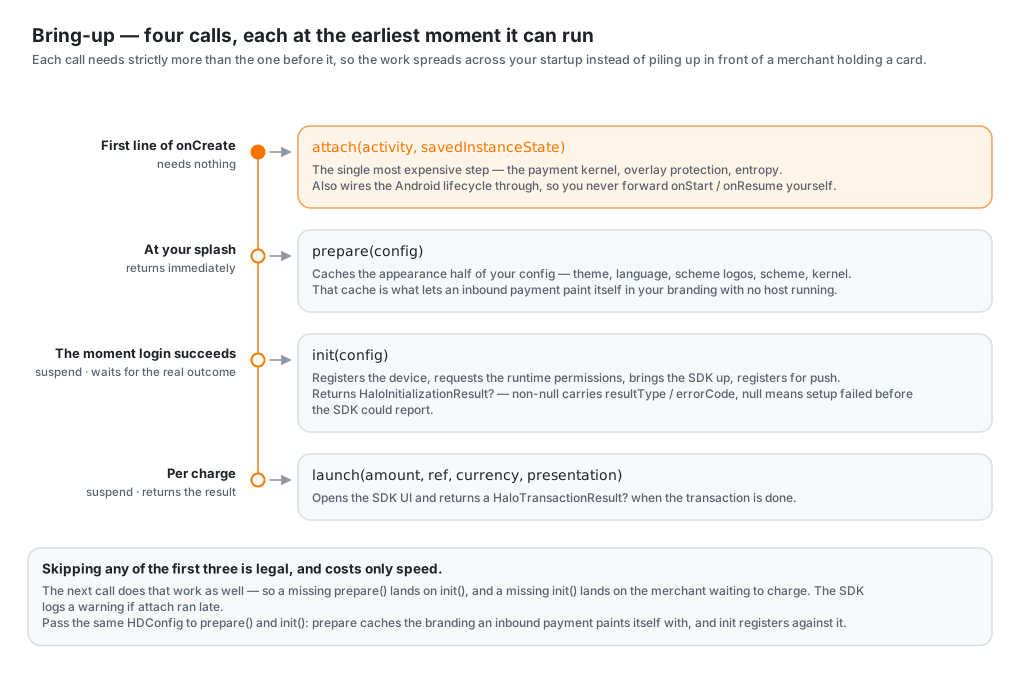
The four calls, and the two setters
| Call | Where | Blocking? | What it does |
|---|---|---|---|
attach(activity, savedInstanceState) | First line of onCreate | No | Loads the payment kernel, overlay protection and entropy, and wires the Android lifecycle through. |
prepare(config) | Your splash screen | No | Reads your brand file, loads its language, and warms the tap screen's artwork. |
init(config) | As soon as you hold a session token | Suspends | Registers the device, requests runtime permissions and brings the SDK up. Returns the real outcome. Stops early on NFC switched off. |
launch(amount, ref, currency, presentation) | Per charge | Suspends | Runs the transaction and returns the result. Refuses on NFC switched off. |
setLanguage(context, language) | Wherever your app resolves its own | No | Records the language your app is speaking, so the payment screens speak it too. Optional. See Following your app. |
setThemeMode(context, mode) | Wherever your app resolves its own | No | Records whether your app is light, dark or following the device, so the payment screens match it. Optional. See Following your app's theme. |
The two setters are the odd rows out: no order, no pairing, and nothing breaks without them. The four above are the integration.
The order is the point. Each call needs strictly more than the one before it — an Activity, then your config, then a token — so each runs the moment that thing exists and the work spreads across your startup instead of piling up in front of a merchant holding a card. Skipping any of the first three is legal and costs only speed, because the next call does that work too.
Two that are worth more than a table row:
attachis the expensive one, and it must be the first line ofonCreate— not your splash, not after your own setup. Everything your app does afterwards then runs against a payment stack that is already loading. PasssavedInstanceStatestraight through so the SDK can restore itself across a process death. Cheap to call more than once, and you never forwardonStart/onResume/onPause/onStopyourself. The SDK logs a warning if it ran late.initwaits for the truth. It suspends until the SDK reports its real outcome — registered, attested, initialised, kernel settled — and returns aHaloInitializationResult?, whoseresultTypeanderrorCodesay why when it failed;nullmeans setup broke before the SDK could report at all. So you never discover a dead SDK mid-transaction and there is nothing to poll. Idempotent, so calling it again later as a backstop costs nothing.
Two lookups
val version = HaloSdkUi.sdkVersion                          // readable before attach()
val installation = HaloSdkUi.deviceInstallationId(context)  // null until first registration
sdkVersion is the underlying Halo SDK's own version string, for a host that displays it beside a link to the PCI listing. deviceInstallationId is what the kernel knows this install by, and what you present to register the device for Push to Terminal. It is null until init has registered the device once, and survives launches and process deaths after that.
HDConfig
Two fields, and both are required.
| Parameter | Type | Default | Description |
|---|---|---|---|
activity | ComponentActivity | required | The activity hosting the SDK UI. Must be a ComponentActivity, since the UI is Compose. |
onTokenRequest | suspend () -> String | required | Returns a valid Halo SDK token. A suspend context, so fetching it from your backend needs no extra plumbing. A plain lambda still fits; Kotlin converts it. |
Everything else is your brand file — colours, type, the marks, the language, the scheme logos, the link scheme, the kernel your short App Links resolve against, how an inbound payment is presented, and every switch the SDK offers. There are two runtime setters, setLanguage and setThemeMode, and only because a merchant's own choices are the one thing no build can state. Why the rest are files, in one line: an inbound payment runs none of your code, so anything only a call could say is a thing that flow cannot know.
What is left is what a file genuinely cannot state: activity and onTokenRequest exist only while you are running.
Your app's package name and version are read from the platform, so you do not supply them.
Taking a payment
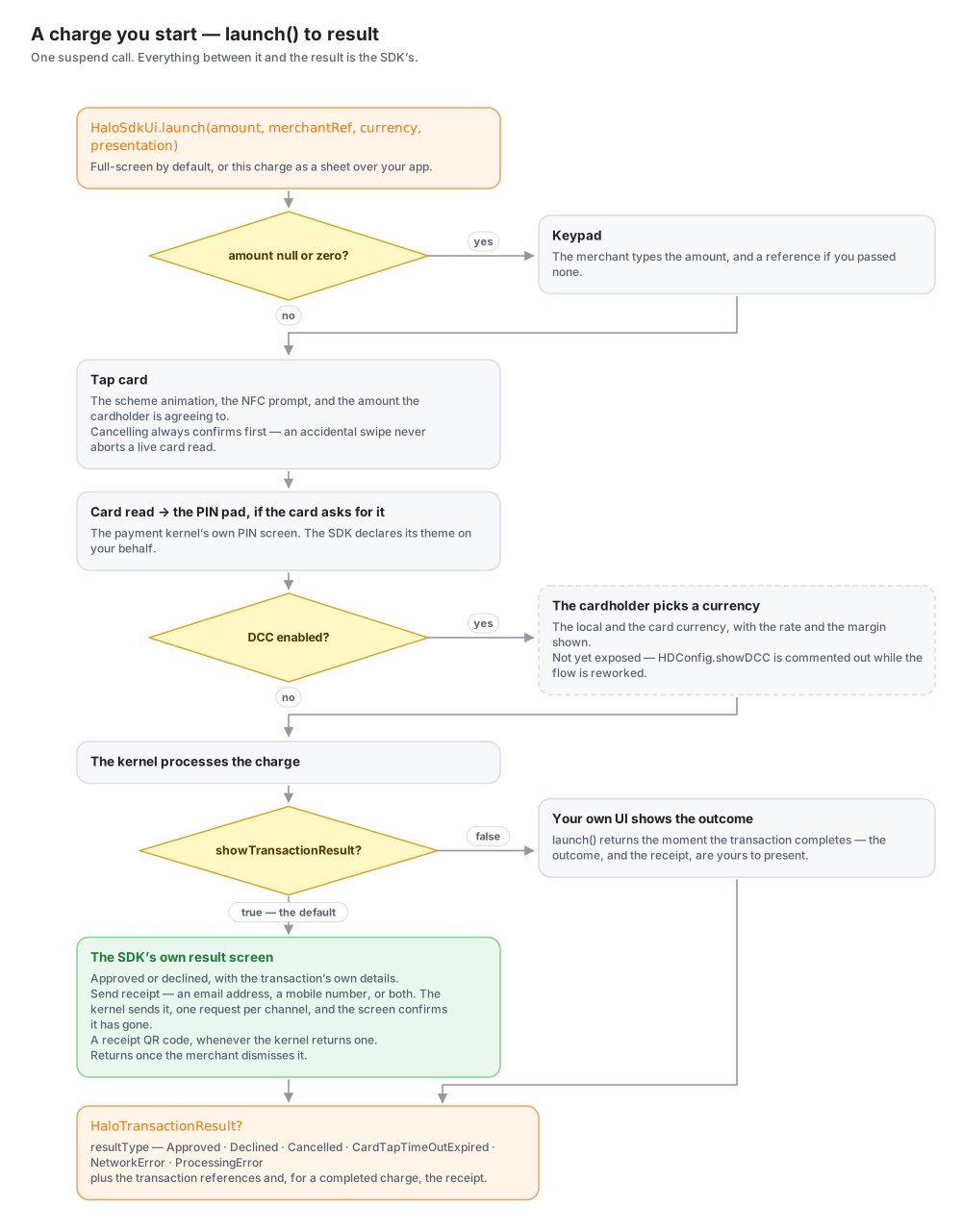
HaloSdkUi.launch is a suspend function. It opens the SDK UI and returns when the transaction is done.
| Parameter | Type | Description |
|---|---|---|
amount | BigDecimal? | The amount. null or zero shows a keypad for the merchant to enter one. |
merchantRef | String? | Optional reference. Supply one and it is used as-is and shown read-only on the keypad; pass null and the merchant can type one. |
currency | HDCurrency? | ZAR, GBP, EUR or USD. Omit it and the amount is denominated in the head of your brand file's currencies, which is the rand unless you narrowed the list. |
presentation | HDPresentation | Full-screen (the default) or a sheet over your app, per charge. See Presentation. |
import za.co.synthesis.halo.sdk_ui.HaloSdkUi
import za.co.synthesis.halo.sdk_ui.models.HDCurrency
import java.math.BigDecimal

fun startPayment(amount: BigDecimal) {
    lifecycleScope.launch {
        val result = HaloSdkUi.launch(
            amount = amount,
            merchantRef = "REF-9921",
            currency = HDCurrency.ZAR,
        )
        handleResult(result)
    }
}
Pass an amount and the SDK skips the keypad and goes straight to the tap screen. Pass null and the merchant enters the amount, and optionally a reference, first.
Handling results
launch returns a HaloTransactionResult? carrying a resultType, the transaction references and, for a completed transaction, the receipt.
| Type | Meaning |
|---|---|
Approved | The transaction succeeded |
Declined | The bank or issuer declined it |
Cancelled | The user closed the SDK before completion |
CardTapTimeOutExpired | The card was not tapped in time |
NetworkError / ProcessingError | A technical failure |
import za.co.synthesis.halo.haloCommonInterface.HaloTransactionResult
import za.co.synthesis.halo.haloCommonInterface.HaloTransactionResultType

fun handleResult(result: HaloTransactionResult?) {
    when (result?.resultType) {
        HaloTransactionResultType.Approved ->
            println("Approved: ${result.merchantTransactionReference}")
        HaloTransactionResultType.Declined -> println("Declined")
        HaloTransactionResultType.Cancelled -> println("Cancelled by user")
        else -> println("Transaction status: ${result?.resultType}")
    }
}
By default the SDK shows its own success and failure screens first, and launch returns once the merchant dismisses them. Set "showTransactionResult": false in your brand file and it returns the moment the transaction completes, leaving the outcome and the receipt to your own UI.
When something goes wrong
A technical failure, as opposed to a decline, ends on the SDK's error screen. It shows a plain sentence saying what happened, and under it an Error details line carrying the SDK's own names for the failure.
Those codes are the part worth quoting to support. The payment SDK routinely names one failure twice, once as an error code and once as a result type, and the useful half is not always the same one: a refused charge answers GeneralError plus UnknownError, while a denied camera answers CameraPermissionNotGranted with no error code at all. The screen leads with whichever name says something and lists all of them underneath, and where the failure is one the merchant can go and fix it carries the button that fixes it — Open settings for a refused permission, Turn on NFC for the radio. Every other failure offers Close alone, because a button that leads somewhere unrelated to the problem is worse than no button.
Failures that already carry a sentence for the payer, such as an unusable QR code, show that sentence alone with no codes under it.
When NFC is off
Tap-on-phone reads the card over NFC, so the radio being switched off is the one bring-up failure a merchant can fix in two taps — and the one they were least likely to be told about. You do not check for it. The SDK asks the adapter itself, and it asks twice:
| When | What happens |
|---|---|
During init | The bring-up stops before the kernel is asked for anything, and the error screen goes up with Turn on NFC on it. init returns as a failed bring-up. |
At each launch | The transaction is refused before the tap screen is staged. launch answers null, exactly as it does for any flow that ended without a result. |
Both, rather than one: a bring-up that passed proves nothing about the next sale, and the switch is in the merchant's notification shade.
The check runs after your brand file and its language are loaded, so the screen is in your colours and the merchant's words, and after the config is cached — which matters because that cache is the only place the SDK learns which kernel a token-less App Link resolves against. A device that fell out of bring-up before that point would take the next payment link it was sent and fail it on "no kernel is configured", about the wrong problem entirely.
Turn on NFC opens the system NFC page, or the general wireless page on the skins that ship no NFC screen. NEW_TASK, so settings does not become part of your payment flow's back stack: the merchant flips the switch, comes back, and the error screen is still there to close.
Three things it deliberately does not do:
- It does not gate hardware. A device with no NFC adapter at all is yours to gate, not ours — you decide whether your app has any business installing there, and your own "unsupported device" screen says it better than a button to a switch the device hasn't got. Only a radio that exists and is off stops anything here.
- It does not guess. The payment SDK answers
NoTerminalContainerwhen it cannot stand a contactless terminal up, which is what it answers every time with the radio off — and equally what it answers for a genuine container fault on a device whose NFC is on. So the adapter decides which of those you are looking at. A failure the SDK namedNFC…itself is taken at its word. - It does not need host wiring. No callback, no result type to branch on, no permission to request. NFC is a declared permission (see below) and being switched on is not a permission at all — it is the device owner's switch.
Receipts
On an approved transaction the result screen offers Send receipt. The merchant enters an email address, a mobile number or both, and the Halo kernel sends the receipt against the transaction's own reference, one request per channel. The screen confirms once it has gone.
Delivery is the kernel's, not the device's: there is no Android share chooser, nothing is pasted into a third-party app, and the backend keeps a record that a receipt was issued. The screen also shows a receipt QR code when the kernel returns one, which the cardholder can scan to take the receipt with them. It may never arrive, and the screen shows everything else regardless.
None of this needs host wiring. Set "receipt": ["-share"] in your brand file to remove all of it: the Share button, the sheet behind it and the QR. The receipt/pdf lookup is then never made either, since nothing is fetched for a screen that would not show it. On a decline the primary button is Retry, so a decline keeps its retry either way. It is in the file with the rest of your brand, so an inbound payment behaves the same way.
To send receipts on one channel only, set "emailReceipt": false or "smsReceipt": false. The sheet then asks for the other alone, and drops the hint that either will do.
Dynamic Currency Conversion
Not yet exposed. The flow is implemented, but nothing public switches it on today: the only setter is a commented-out demo toggle in
HaloSdkUi. This describes what it will restore.
After the card is read, the cardholder is shown the amount in the local currency and in the card's currency, with the exchange rate and conversion margin. They pick one, the transaction completes in that currency, and the success screen carries the DCC details.
Presentation
HDPresentation.FULL_SCREEN (the default) is the SDK as its own app: an opaque activity that replaces yours for the length of a charge.
HDPresentation.SHEET presents the charge as a bottom sheet with your app dimmed behind it, so it reads as your app asking for a card rather than another app taking over.
HaloSdkUi.launch(amount, merchantRef, currency, presentation = HDPresentation.SHEET)
Nothing goes in your manifest. launch takes its own presentation, so consecutive charges can differ, and your brand file's presentation answers for the flows that arrive with no launch call at all, such as an intent or a payment link.
A sheet is the same screen, smaller. Same parts, same order, same type hierarchy, laid out for a shorter surface rather than redrawn for it — every page declares a heading, a body and an optional footer, and one shell arranges them, so portrait, landscape and sheet all fall out of the same declaration. The whole charge lives in one sheet with pages changing inside it, so bring-up handing over to tap is not one surface closing and another opening. The keypad and the detailed breakdown stay full-screen either way.
One thing is the sheet's own: a top bar carrying your logo on the left (leading rather than centred, so it does not shift as the actions change width) and, on the right, the buttons a full-screen page puts at its foot (Cancel, Share receipt, Charge).
Swiping the sheet down, tapping the dimmed area and pressing back all raise a cancel confirmation, on the bring-up screen as well as on tap. The sheet never simply closes, because an accidental swipe would otherwise abort a live card read.
Know what a sheet costs. A window's surface format is fixed at creation, so the SDK's activity is created translucent and converts itself to opaque for a full-screen charge (Activity.setTranslucent, API 30+). Full-screen brands are therefore unaffected. Under a sheet your app is no longer stopped behind the payment surface: it keeps rendering next to a live card read, and another app's pixels are visible behind a card-present screen, which is the shape overlay protection exists to catch (HaloErrorCode.OverlayDetected).
A host that starts HDActivity itself, handing over a link it scanned rather than one the OS routed to it, can say which presentation to use for that flow:
startActivity(
    Intent(this, HDActivity::class.java)
        .setData(Uri.parse(scannedLink))
        .putExtra(HDActivity.EXTRA_PRESENTATION, HDPresentation.FULL_SCREEN.name)
)
The extra outranks the brand file's presentation for that one flow, and leaving it out changes nothing. It exists because a link the OS delivered arrived from outside, where a sheet over the host is right, while a link the host scanned is the merchant charging from their own screen, where a sheet would float the charge over the viewfinder that just read it.
Theming
Your brand is a file. State it once in your build, as src/main/assets/halo/brand.json, and the SDK reads it on every bring-up:
{
  "light": {
    "primary": "#FF6200EE",
    "secondary": "#FF3700B3",
    "tertiary": "#FF7C4DFF",
    "accent": "#FF03DAC6",
    "surface": "#FFFFFFFF",
    "onSurface": "#FF000000",
    "onPrimary": "#FFFFFFFF",
    "outline": "#FFCCCCCC",
    "error": "#FFB00020"
  },
  "dark": { "primary": "#FFBB86FC", "surface": "#FF121212", "onSurface": "#FFFFFFFF" },
  "shape": 12,
  "style": "HORIZONTAL",
  "gradient": ["secondary", "tertiary", "primary"],
  "logo": "brand-logo.svg",
  "icon": "brand-icon.svg",
  "schemeLogos": { "amex": false, "discover": false },
  "font": "Helvetica",
  "text": { "label": 14, "value": 16 },
  "scheme": "yourscheme",
  "presentation": "SHEET",
  "receipt": ["share", "print"]
}
There is no call to make and nothing to pass at init. Every key is optional, and what you leave out is Halo's own. The bottom rows are behaviour rather than paint, and they are in the same file for the same reason: a brand that hands out no receipts, or takes its payments as a sheet, is that brand on every flow — including the ones that start with none of your code running.
| Key | Type | Default | Description |
|---|---|---|---|
light | object | Halo's light scheme | Light-mode colours |
dark | object | Halo's dark scheme | Dark-mode colours |
shape | number | 16 | Corner radius, in dp, for buttons and containers |
style | string | "HORIZONTAL" | How the surfaces carrying your accent are filled: "SOLID" for flat primary; "HORIZONTAL", "VERTICAL", "DIAGONAL_LEFT" or "DIAGONAL_RIGHT" for your ramp. See Fill |
gradient | array | ["secondary", "primary"] | The colours your ramp runs through, in order: two to four of primary, secondary, tertiary and accent. See Fill |
logo | string | the Halo logo | Your logo, serving both light and dark modes |
icon | string | your launcher icon | Your square app mark, used where the SDK has one glyph's worth of room. Today that is the small icon on a pushed payment's notification |
font | string or object | the platform's own | The typeface the screens are set in: a family name, or the family plus the files you ship it as. See Type |
text | object | the Material 3 scale | Type sizes in sp. See Text sizes |
schemeLogos | object | all on | Which card scheme logos are shown: nfc, visa, mastercard, amex, discover, elo, each a boolean |
themeMode | string | "SYSTEM" | "LIGHT", "DARK" or follow the device. A merchant's own pick, where you have passed one to setThemeMode, comes ahead of it |
language | string | the device's | "en", "af", "zu", "fr", "de", "es", "pt". A merchant's own pick, where you have passed one to setLanguage, comes ahead of it. See Languages |
languages | array | all seven | The languages your app offers, e.g. ["en", "af"]. Every candidate is held to it — the pin and the merchant's own pick included. See Languages |
currencies | array | all four | The currencies your app charges in, e.g. ["ZAR", "USD"]. Its head is what the keypad opens on, and what an amount with no currency of its own is denominated in. See Currencies |
presentation | string | "FULL_SCREEN" | "SHEET" puts inbound payments over the app that sent them. See Presentation |
scheme | string | "halo" | The custom scheme your payment links arrive on. Must match the halo_url_scheme resource |
kernel | string | none | The kernel that short App Links resolve against. See Short App Links |
kernelPins | string | none | SHA-256 SPKI fingerprints for kernel's TLS certificate, semicolon- or comma-separated |
showTransactionResult | boolean | true | Whether the SDK shows its own result screens |
receipt | boolean or array | ["share"] | Which receipt actions the result screen offers. true/false turns both on/off; an array names them — ["share", "print"], or carve one out with ["-print"]. Print shows only where the device has a printer. See Receipts |
emailReceipt / smsReceipt | boolean | true | Which of the receipt sheet's two fields are drawn. See Receipts |
receivePush | boolean | false | Whether this device registers to receive pushed payments. See Push to Terminal |
analytics / crashReports | boolean | false | What the SDK reports about itself. See Telemetry |
A colour is #AARRGGBB, 0xAARRGGBB, a bare RRGGBB (opaque) or a packed integer, so the same hex your colors.xml and your designer use goes straight in. The colours themselves are primary, secondary, tertiary, accent, surface, onSurface, onPrimary, outline and error; name only the ones you are changing. tertiary and accent exist for a ramp of more than two colours. Leave them out and they are your secondary and primary.
The logo is a self-theming template SVG, so one asset serves both surfaces. The SDK substitutes the active colour scheme into placeholder tokens before rendering: {{PRIMARY}}, {{SECONDARY}}, {{TERTIARY}}, {{ACCENT}}, {{ERROR}}, {{SURFACE}}, {{ONSURFACE}} and {{OUTLINE}}. Any token left unreplaced renders as an invisible fill. Both paths are asset paths in your own APK, so a Flutter host names its bundled mark flutter_assets/assets/brand/logo.svg.
Fill
Some surfaces carry your accent rather than sitting on the surface colour: the primary button, the top bar's action pill, the row of step dots, and any illustration drawn on your own ramp. style says how they are filled.
| Value | What it draws |
|---|---|
"HORIZONTAL" | Your ramp, left to right. The default, and what every brand had before this key existed |
"VERTICAL" | The same ramp, stated for a host whose own splash runs top to bottom |
"DIAGONAL_LEFT" | The same ramp, stated for a host whose own splash runs from the top-left corner to the bottom-right |
"DIAGONAL_RIGHT" | The same ramp, stated for a host whose own splash runs from the top-right corner to the bottom-left |
"SOLID" | Flat primary, no ramp |
Hyphens and spaces read as underscores, so "diagonal-left" is DIAGONAL_LEFT.
Only SOLID changes anything here, and that is deliberate. A direction is a choice about a full-height backdrop, and the SDK draws none. Every ramped surface it has is a strip, and a gradient running down a strip is a gradient nobody can see. Send the whole value anyway, so that your app and the payment screens agree about what the brand asked for, and so the decision stays the SDK's if it ever grows a surface tall enough to turn.
The ramp's colours
The ramp is secondary running into primary unless you say otherwise. gradient says otherwise: two to four of your theme's colours, by name, in the order the ramp runs through them.
{
  "light": { "primary": "#FF440BD4", "secondary": "#FFFF0090", "tertiary": "#FF6F08C4", "accent": "#FF01FFFF" },
  "gradient": ["secondary", "tertiary", "primary", "accent"]
}
They are names rather than colours so that each scheme resolves them for itself, and the dark ramp is your dark colours. A name the SDK does not know, or fewer than two, and the whole key is ignored: a ramp missing a stop would be a different gradient, and secondary into primary is at least one your brand has seen.
The buttons, the action pill and the step dots run through it, and so does your artwork. A two-stop <linearGradient> from {{SECONDARY}} to {{PRIMARY}} is re-stopped evenly across your ramp, keeping the axis it was drawn on. One drawn {{PRIMARY}} first takes the ramp reversed, so it still ends where it was drawn to. A gradient with more than two stops was drawn through your colours on purpose, like a brand mark, and is left exactly as drawn.
Flat
SOLID reaches your logo too. A <linearGradient> whose stops name both {{SECONDARY}} and {{PRIMARY}} is your ramp, and every ramp colour in it, {{TERTIARY}} and {{ACCENT}} included, is flattened to primary with the rest. A gradient that names real colours, or only one of the two, belongs to the illustrator and is left exactly as drawn, so a card scheme mark or a flag keeps its own shading. The ramp flattens to primary whatever gradient says, which means onPrimary is still the ink that sits on it and nothing else on the screen changes.
An unknown value, or none, is HORIZONTAL: a host built against a newer generator does not lose its ramp to a name this version has not heard of.
Why it is a file, not a config
All of this used to be parameters on HDConfig, and being parameters made them a lie. An inbound payment brings the SDK up cold, natively, in a process where no host code has run and nothing has called init, so an app whose brand existed only in a call had no brand at all on the flow a cardholder was most likely to see. What the SDK had was the last config it had been given, which is nothing on an install that was never opened or has had its data cleared — and those payments came up in Halo's own colours on a merchant's phone.
A file is in the APK before the app has run once, and on the launch nobody made. So the brand is stated where it cannot go missing, and two places answer for the SDK: the file for what this app is and where it talks, and HDConfig for the live wiring, which is the one thing a file cannot hold.
A language picker and a light or dark switch are the two exceptions, and they are the exceptions that draw the line. A person's choice is not something the build knows, so no file can hold it. Yet the payment screens have no picker or switch of their own to correct them with, so leaving them on the file would strand a merchant who changed your app. setLanguage and setThemeMode resolve it the file's way rather than a call's: the SDK records what you tell it, and reads it back on every bring-up, including the one at four in the morning that ran none of your code. Your colours, fill and type stay the file's, so what a cardholder sees is your brand whether the charge started on your keypad or arrived as a link.
Following your app's theme
If your app lets the merchant pick light, dark or the device's setting, tell the SDK what they picked:
import za.co.synthesis.halo.sdk_ui.models.HaloThemeMode

HaloSdkUi.setThemeMode(context, HaloThemeMode.DARK)   // null forgets it
Call it at startup and whenever the merchant changes it. It is cheap and idempotent, and a payment screen already showing repaints on the spot. What you pass comes ahead of your brand file's themeMode; null forgets it and puts the screens back on the file's.
Type
Say nothing and the screens are set in the platform's font, which is what they always were. font changes that, and there are two ways to say it.
A family name, when the typeface is one the device already has:
{ "font": "Helvetica" }
The family and your own files, when it is not — and this is the only form that is certain of what gets drawn:
{
  "font": {
    "family": "Helvetica",
    "files": [
      { "asset": "fonts/Helvetica.ttf", "weight": 400 },
      { "asset": "fonts/Helvetica-Bold.ttf", "weight": 700 },
      { "asset": "fonts/Helvetica-Italic.ttf", "weight": 400, "italic": true }
    ]
  }
}
Each asset is a path in your own APK, like the logo, so a Flutter host names its bundled file flutter_assets/assets/brand/Helvetica-Bold.ttf. weight is 100 to 900 — 400 regular, 700 bold — and it defaults to 400. State it: Android's asset font takes your word for the weight rather than reading the file, so a bold cut handed over as 400 is drawn wherever regular was asked for and the bold on top of it is synthesised. A weight you ship no file for is synthesised from the nearest one you did.
Name the family even when you ship files. It is what a cut you did not ship falls back to, and it is the same name your own screens set their text in, so the two sides of a charge cannot disagree about what the brand is.
One thing to know about a bare name on Android: helvetica, arial, tahoma and verdana are aliases to the system sans-serif in the platform's own fonts.xml, and any family the device does not have resolves to it too. Either way you get Roboto, drawn without complaint. If the typeface matters, ship it.
A file the SDK cannot open is dropped with a line in the log and the rest of the family carries on — a payment screen is never held up over a typeface.
Text sizes
Every piece of text asks for a role, not a size, and the text object says how big each role is, in sp. Change one and every screen using it follows. Line spacing scales with the size, so larger type never collides.
| Key | Default | Used for |
|---|---|---|
display | 45 | The amount, and nothing else |
titleLarge | 22 | A page's headline ("Payment Approved") |
title | 16 | Section headings and button labels |
body | 14 | Running text |
bold | 16 | Emphasis within running text |
label | 12 | The left side of a detail row |
value | 14 | The right side of a detail row |
The defaults are the Material 3 type scale, so a brand that says nothing about text looks exactly as it always has. Sizes honour the device's font-size accessibility setting.
{ "text": { "label": 14, "value": 16 } }
Currencies
The SDK charges in rand (ZAR), pounds (GBP), euros (EUR) and dollars (USD). If your app settles in fewer, say so in your brand file:
{ "currencies": ["ZAR", "USD"] }
The head of the list is the one that matters: it is what the keypad opens on, and what an amount arriving with no currency of its own is denominated in. Put the currency you mostly charge in first. Say nothing and nothing is narrowed — the list is all four, headed by the rand.
The rest stay on the sheet, greyed. Narrowing a list by deleting from it tells a merchant nothing — a sheet holding one row reads as a build that forgot the others, and "where did dollars go?" has no answer on the screen that would answer it. Greyed, the row says which of the two it is: this SDK charges in dollars, this app does not. The sheet is therefore always all four, in the SDK's own order, and your order decides the head rather than the rows.
What it narrows is the merchant's choice. An amount that arrives already denominated — a launch carrying a currency, a parsed payment link, a DCC quote — is charged in the currency it came in, because re-denominating someone else's amount would charge a different sum of money under the same number.
It belongs in the file rather than in a call for the usual reason: an inbound payment brings the keypad up with none of your code in the process to narrow anything.
Languages
The SDK ships English (en), Afrikaans (af), Zulu (zu), French (fr), German (de), Spanish (es) and Portuguese (pt). Three things can answer, and they are tried in this order: what your app told it the merchant chose, then your brand file's pin, then the device. English backs anything none of them lands on, and any key a translation is missing.
Pin one in your brand file:
{ "language": "af" }
Say nothing and the SDK follows the device, which is what a merchant's phone already reflects.
Following your app
If your app has a language picker of its own, tell the SDK what the merchant chose:
import za.co.synthesis.halo.sdk_ui.core.HDLanguage

HaloSdkUi.setLanguage(context, HDLanguage.AFRIKAANS)   // null forgets it
A code your app carries as a string, "af" or a BCP-47 tag like "af-ZA", goes through HDLanguage.fromCode, which answers null for anything this release does not ship — and null is the right thing to pass on, since it puts the screens back on their own resolution rather than leaving them in the language chosen before.
Call it wherever your app resolves its own language — at startup and on every change — and the payment screens follow. Without it they resolve on their own, so a merchant who switches your app to Afrikaans still taps the card against whatever the phone is set to: the payment screens have no picker to correct it with.
What you say here comes ahead of the pin below, because your app resolved through that pin to reach it. The SDK records it rather than holding it, which is what carries the choice onto the flow none of your code takes part in — a payment that arrives at four in the morning is in the language your merchant chose.
The ones your app speaks
Following the device is right until your app does not speak what the device does. If yours ships in English and Afrikaans, say so:
{ "languages": ["en", "af"] }
Every candidate is then held to that list — the pin above included — so a French phone takes its payments in English rather than in a language the rest of your app has never shown. English backs the fall-through; an app that does not offer English gets the first language it does. Say nothing and nothing is narrowed.
It belongs in the file rather than in a call for the sharpest version of the usual reason: the payment screens have no language picker of their own, so the build is the only thing that can ever narrow them — and an inbound payment narrows them with none of your code in the process.
Saying it your way
Any string the SDK shows can be reworded per app. Ship a partial catalogue in your own assets at assets/lang/overrides/<code>.json, containing only the keys you say differently:
{
  "tap_and_hold": "Hold the card against the back of the phone.",
  "payment_approved": "Paid"
}
That is the whole of it. There is no call to make. The file is laid over the SDK's catalogue whenever a language loads, so everything you do not name stays as translated, and a string added in a later SDK release is live the day you take it.
An asset rather than a call, for the reason your appearance is one: it is in the APK before your app has run, so a payment that arrives first is worded the way you meant.
One thing to know: a key this SDK does not have replaces nothing. It cannot fail your build, so it is logged instead. HDLang warns with the file and the keys it could not place the first time that language loads.
Permissions
The SDK's permissions merge into your manifest automatically, and the runtime ones are requested for you inside init(). You prompt for nothing yourself. The prompt runs alongside bring-up rather than in front of it, so a merchant answering it is not also holding up registration. A denial does not abort bring-up: init continues, logs what was refused, and the consequences come back in its result.
| Permission | Runtime prompt | Purpose |
|---|---|---|
INTERNET | Talking to the Halo backend | |
NFC | Reading payment cards — declared here, switched on is a separate matter | |
VIBRATE / MODIFY_AUDIO_SETTINGS | Feedback on card tap | |
BLUETOOTH / BLUETOOTH_ADMIN | External card reader support (pre-Android 12) | |
CAMERA | ✓ | Device security verification |
ACCESS_FINE_LOCATION / ACCESS_COARSE_LOCATION | ✓ | Payment compliance |
READ_PHONE_STATE | Declared by the payment SDK, never prompted for | |
RECORD_AUDIO | Declared, never prompted for, never needed; the kernel mutes the microphone rather than reading it | |
BLUETOOTH_SCAN / BLUETOOTH_CONNECT | External card reader support, never prompted for | |
POST_NOTIFICATIONS | ✓ (Android 13+, if receivePush) | Push to Terminal's notification |
Declaring is free, prompting is not, so the two columns are deliberately different. READ_PHONE_STATE cannot do what it is named for on any supported device, since Android 10 stopped returning IMEI or serial to a normal app, and asking would cost every merchant a Phone-group prompt that reads as a payment app asking to make calls. Bluetooth is for an external card reader, and there is no reader path in this SDK.
RECORD_AUDIO is the one row that buys nothing at all, and is there so a host's store listing reads as it did on v1, which carried it. What the kernel does with the microphone is keep it muted for the length of a transaction, failing the charge with MicrophoneWasUnmuted if that lifts; it links no audio-input library and cannot open a microphone. A held grant would sit against that countermeasure rather than enable anything, which is why it is only ever declared. The same goes for the microphone, camera.any and bluetooth_le feature declarations beside it: all three are optional, so none of them filters a device off your listing.
POST_NOTIFICATIONS is asked for on Android 13+ only when receivePush is set, since a build that cannot be pushed to has nothing to notify anyone about. Refused, a pushed payment waits for the merchant to next open the app rather than failing.
Using the camera in your own app
The kernel watches the camera while it is up. It reads entropy off it and treats another component opening it as tampering, which cancels a card read in progress. If your app uses the camera too, a QR scanner for instance, say so:
HaloSDK.requestCameraUsage()   // before the camera is opened
HaloSDK.returnCameraUsage()    // once it is closed
"Closed" is later than it looks. stop() on a CameraX controller returns when the release begins, and closing the graph and then the device runs about two seconds on the hardware we have measured. Hand the camera back before that and the kernel finds it still open and reports your own scanner as tampering. The SDK holds itself to the same rule: monitoring stands down for the length of a boot, where there is no card read to protect, and comes back up with the tap flow.
The SDK also declares a theme for the payment SDK's PIN pad activity (PinScreenLauncherActivity) on your behalf. Without it, a host whose application theme is not AppCompat, such as a Flutter host, crashes the moment the kernel asks for a PIN, with the card already read. You need to do nothing; it is mentioned only so the extra <activity> in your merged manifest is not a mystery.
Build configuration
Two things live in the manifest, which is read before any of your code runs, so no runtime call could set them.
| Resource | Default | What it does |
|---|---|---|
halo_url_scheme | halo | The custom scheme payment links arrive on: halo://pay?… |
halo_applink_host | (empty) | Your App Link domain, as an autoVerify filter for http and https |
android {
    buildFeatures { resValues = true }
    defaultConfig {
        resValue("string", "halo_url_scheme", "yourbrand")
        resValue("string", "halo_applink_host", "pay.yourbrand.com")
    }
}
Declaring the same names in res/values/strings.xml works too, since app resources beat a library's either way. Neither is mandatory: ignore them and you get halo:// plus an App Link filter that matches nothing.
One scheme per brand. Two apps claiming halo:// on the same device is a chooser the payer should never see. If you override halo_url_scheme, put the same value in your brand file's scheme. The resource is the manifest half and the file's is the parser's half, and they have to agree.
autoVerify needs an assetlinks.json published on that domain, or Android offers a chooser instead. You still declare no intent filters: the domain lands on the SDK's own activity, which keeps every payment on the native path.
Inbound payments
A payment can reach the SDK from outside your app: another app launching it, a customer tapping a link, or the kernel pushing at the device. The SDK's own activity owns those entry points and handles them natively — it parks the payment, boots itself from your brand file and runs the transaction. No host code runs, and on a Flutter or React Native host no Dart or JavaScript engine is even started.
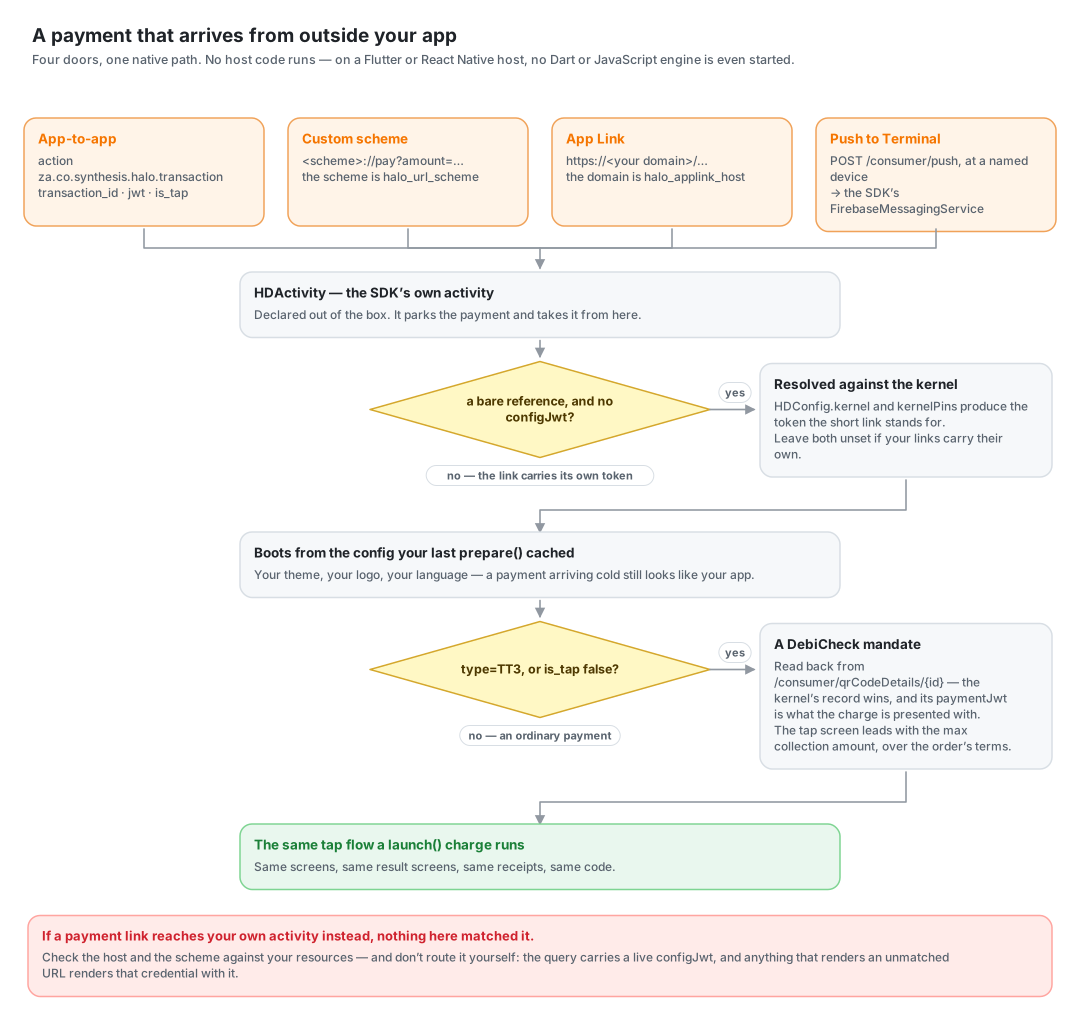
Declared out of the box, nothing to add:
| Entry point | Shape |
|---|---|
| App-to-app | action za.co.synthesis.halo.transaction, with transaction_id and jwt extras (and optional is_tap) |
| Custom scheme | <scheme>://pay?amount=¤cy=&merchantReference=, where <scheme> is halo_url_scheme |
| App Link | https://<your domain>/…, carrying either the payment query params or a bare reference |
| Push to Terminal | A message to a named device. See Push to Terminal |
Query parameters accept both v1 spellings: merchantReference or reference, transactionId / id / uuid, and configJwt or jwt.
Firebase Dynamic Links (
halompos.page.link) are no longer claimed. FDL shut down in August 2025, nothing in the SDK resolves a short link into its payment payload, and a barepage.linkURL carries no query to read.
If a payment link reaches your own activity instead, nothing here matched it. Check the host and scheme against the table above, and do not route it yourself: the query carries a live
configJwt, and anything that renders an unmatched URL renders that credential with it.
Short App Links
One link shape needs configuration: an App Link carrying a reference and no configJwt, the short form the enabler mints. Resolving it against the kernel is what produces the token, so there is no token to read the kernel's address from, and your brand file has to say which kernel to ask:
{
  "kernel": "kernelserver.go.qa.haloplus.io",
  "kernelPins": "sha256/CNOtjib4NAlSqDZDY5aknDcVbcfLEWBgnGl/dgec4aA="
}
kernel is the address this client calls: https:// is optional and a trailing slash is trimmed, and a path prefix is kept, so a deployment served under one (qa.example.co.za/kernelserver) states it. kernelPins are SHA-256 SPKI fingerprints as sha256/<base64>, the same values a token's aud_fingerprints claim carries; bare base64 is accepted too, and several are separated by ; or ,. More than one is normal, so a certificate rotation cannot brick the SDK, and naming none resolves the link unpinned, which is logged.
In the file rather than in a call for the sharpest version of the reason the rest of the brand is: this resolve runs before the SDK is up, on a start no code of yours took part in — and on an install whose host code may never have run once, since a merchant can be sent a link before they ever open your app.
Leave both out if your links carry their own JWT. Every other call reads its kernel, and its pins, off the credential it presents.
DebiCheck mandates
A DebiCheck mandate, v1's TT3, is a debit order the payer authorises by tapping their card rather than a payment. It arrives through the doors above and needs nothing extra from you: the SDK recognises it, runs the same tap flow, and charges it with the kernel's TT3 call.
| Entry point | How it says it is a mandate | Fields |
|---|---|---|
| App-to-app | is_tap extra set to false | accountNumber, pid, maxCollectionAmount, contractReference, collectionDay, creditorABSN |
| URL / App Link | type=TT3 in the query | the same names, except the identity number is id and the transaction is uuid |
The kernel's record wins. Whatever the intent or link carries, a mandate with a transaction id is read back from /consumer/qrCodeDetails/{id} before it is charged. The account and identity number it is registered against are the kernel's, and the charge is presented with that record's paymentJwt rather than the link's own token.
What the payer sees. The tap screen leads with the instalment amount, which is the mandate's max collection amount: the ceiling the debit order may collect up to, what the kernel authorises against, and what the PIN pad shows. Under it sit the four things that identify the order: the collection day, the account, the creditor's description and the contract reference. A mandate is a document being agreed to rather than a price being paid, so those sit in a card together, and once the card has been read the terms collapse away and the amount stays.
creditorABSN is the creditor's Abbreviated Short Name, the trading name that appears on the payer's bank statement, and it renders as the "Description" row. collectionDay is the day of the month the order runs. Both fall back to undefined when omitted, as v1 does. accountNumber and the identity number are required, and a mandate without them is rejected rather than charged blank.
The mandate's success screen replaces the card, scheme and authorisation rows with the order's terms, since nothing has been collected yet.
Push to Terminal
A payment sent to a named device. A merchant system calls the kernel's POST /consumer/push naming one of its registered devices, and that device opens on the tap screen with the amount already on it. There is no QR to show and nothing for the cardholder to scan.
Like the other doors, this is handled entirely by the SDK. The message arrives at the SDK's own FirebaseMessagingService, becomes a payment URL, and goes to the same activity a payment link goes to, so a pushed payment is charged by exactly the code that charges everything else.
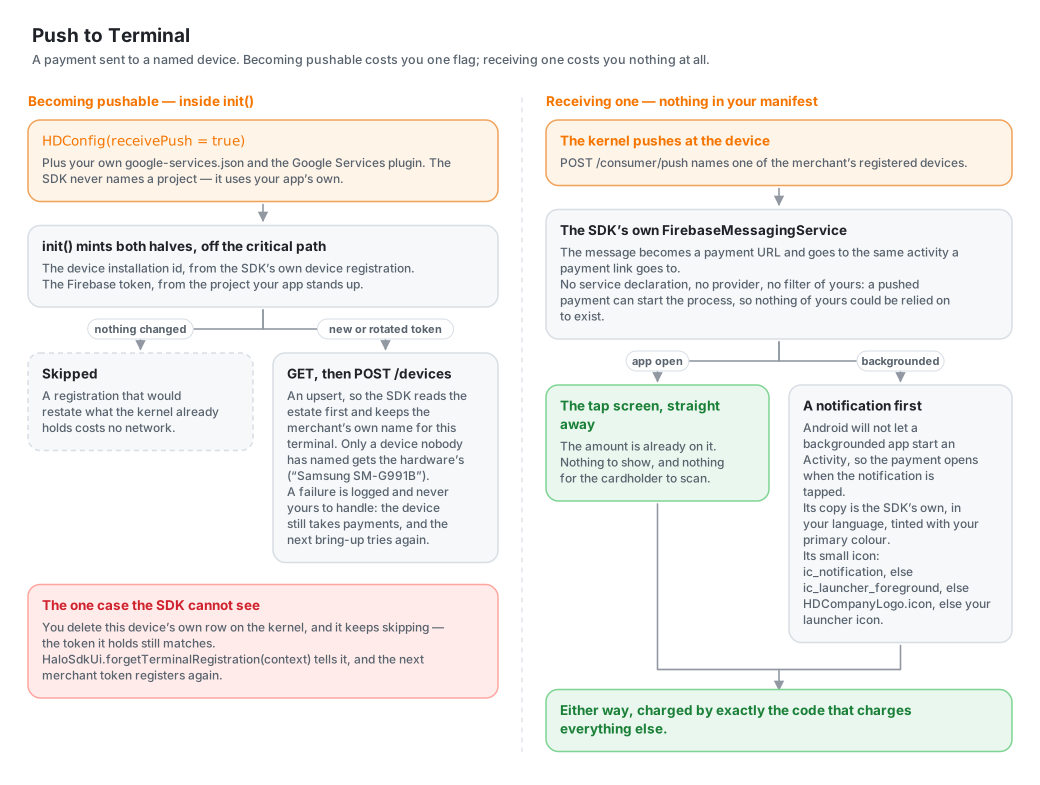
Nothing goes in your manifest: no service declaration, no provider, no intent filter. A pushed payment can start the process, so there may be no Activity and no host code alive when it lands, and anything you contributed could not be relied on to exist. The one thing you bring is your own Firebase project.
Your Firebase project
Your google-services.json in your app module, read by the Google Services plugin, exactly as any other Firebase app has it:
// app/build.gradle.kts
plugins { id("com.google.gms.google-services") }
Then ask for pushed payments in your brand file:
{ "receivePush": true }
That is the whole of it. The plugin turns the file into three string resources, and Firebase's own FirebaseInitProvider, which arrives with the firebase-messaging dependency this library already brings, reads them at process start. The SDK never names a project: it uses your app's own.
A host that would rather not add the plugin can write those three resources by hand, which is all the plugin does:
| Resource | In google-services.json | Why it is needed |
|---|---|---|
google_app_id | client[…].client_info.mobilesdk_app_id, for the entry whose package_name is yours | FirebaseOptions will not build without it |
google_api_key | client[…].api_key[0].current_key | Same |
project_id | project_info.project_id | Firebase Installations, which FCM sits on, will not reach the backend without it |
gcm_defaultSenderId is not among them, since Firebase derives the sender id from the app id. None of these is secret either: they all ship in the clear inside any APK built the ordinary way.
Leave receivePush false and nothing changes. No token is issued, POST /devices is never called, and the device is never pushed at. A build with no Firebase project reaches the same place with the flag set, since there is simply no token to register.
Registering the device
Nothing to do. The kernel pushes at a device it holds a Firebase token for, so it has to be told, and the SDK tells it as part of init, off the critical path. It is the SDK's call rather than yours because it is keyed on two things only the SDK holds: the device installation id, minted inside its own registration, and the Firebase token, minted against the project your app stands up.
- The merchant's name for a terminal survives.
POST /devicesis an upsert with a requiredfriendlyName, so the SDK reads the estate first and keeps this device's existing name. Only a device nobody has named yet gets the hardware's own ("Samsung SM-G991B"). - A rotated token re-registers itself, immediately when there is a session to do it under, and otherwise at the next
init. - The common path costs no network. A registration that would restate what the kernel already holds is skipped.
- A failure is never yours to handle. It is logged, the device still takes payments the ordinary way, and the next bring-up tries again.
If you show the merchant their estate, GET /devices is your call to make, and HaloSdkUi.deviceInstallationId(context) picks out the row for the device in their hand.
One case the SDK cannot see: you delete this device's own row. DELETE /devices/{id} leaves the SDK still holding the token it last registered with, which is exactly what the skip check above compares against, so it keeps skipping forever. Tell it:
HaloSdkUi.forgetTerminalRegistration(context)
Nothing registers on the spot. The next merchant token the SDK is handed does, by the same path every other registration takes. Call it right after a successful delete of this device's row; deleting another terminal's row needs nothing from you.
What the merchant sees
With the app open, the payment opens straight away. Backgrounded, a notification is posted and the payment opens when it is tapped, because Android does not let a backgrounded app start an Activity and a high-priority message does not change that. The notification's copy is the SDK's own, in your configured language, tinted with your primary colour.
Android draws a notification's small icon as a silhouette off its alpha channel, so only the mark's shape survives and a mark with no transparent margin reads as a blob. The SDK therefore looks for a drawable your build already generates before rendering anything itself:
ic_notification, if your app declares one. The escape hatch for a host that wants to draw its own.ic_launcher_foreground, the foreground layer of your adaptive launcher icon: your mark on a transparent canvas, already inset. If your build generates one, this is what a pushed payment uses, with no extra artwork.HDCompanyLogo.icon, rendered from your SVG on the spot.- Your launcher icon, last and only better than nothing, since a launcher icon is opaque edge to edge and silhouettes to a solid block.
These are looked up by resource name, since a library cannot reference your R. There is nothing to wire if you already generate ic_launcher_foreground.
One loose end is caught on a hook you already call. A message carrying a notification block is drawn by the system, and its tap opens your launcher activity rather than the SDK's, so HaloSdkUi.attach checks the intent it is handed for a pushed payment. Nothing to wire, as long as attach is the first line of your onCreate.
The shape of the Firebase message the kernel sends is not part of Halo's published Push to Terminal contract, which stops at the
POST /consumer/pushresponse. The SDK accepts either plausible shape, a payload carrying the payment link outright (url/link/applink/ …) or one naming the payment field by field (transactionId/reference,amount,currency,merchantReference,configJwt), and logs the keys of anything it cannot read. Watch it withadb logcat -s HaloPush.
Telemetry
The SDK can report what it did and what went wrong into your own Firebase project. Off by default, and never carrying a payment's details. Both switches live in your brand file:
{
  "analytics": true,
  "crashReports": true
}
Two switches, because they are two different bargains, and crashReports without analytics is a perfectly ordinary brand, as is the reverse. Both are off by default deliberately: this reports into your project, and an SDK that started writing into it uninvited would be making your privacy decision for you. It needs the same google-services.json Push to Terminal needs and nothing else. With no project, or the flag off, no provider comes up and the SDK says so once in the log.
Every signal goes through one interface, so which backends a brand reports to is a list in one file, HDTelemetry.kt. Firebase Analytics and Crashlytics are the two that ship; a brand reporting to its acquirer's collector adds a provider and changes nothing else.
What it reports
Nothing is instrumented screen by screen. Every signal comes from a seam the SDK already had, which is why a new screen or a new failure is measured from the day it exists.
| Where | Reports |
|---|---|
HaloSdkUi.attach | sdk_started, the denominator everything else is read against. A crash before any config existed is queued and flushed when the providers come up |
HDBoot | How long a bring-up took, which door the payment arrived by, and on failure the named phase it stopped in and the type of throwable |
HDBoot's uncaught guard | The crashes nothing handled, as the SDK's only fatals |
Cubit.async / background | sdk_action_finished per operation: its label, whether it worked, the milliseconds the cardholder waited |
Cubit.fail | Every handled failure, as a non-fatal with the trail of what the cubit was doing |
Cubit.emit | That trail: a line per change of stage, never the state itself |
HDApi | Every kernel round-trip as a breadcrumb, and as an event by masked endpoint |
HDRoutes | Screen views, from the navigation state rather than from the pages |
| The payment SDK's callbacks | The two verdicts only they hold: whether the payment stack came up, and whether the acquirer approved |
Six event names in total, all prefixed sdk_. The prefix earns its place: the project is yours, and if you run the same design in your own app, one unprefixed column would carry two apps' operations and answer neither's question.
What it can never carry
Decided in one place, not by a call site. HDTelemetry.scrub drops any parameter whose key names an amount, tip, reference, token, card, address or credential, however the call site labelled it, and any value that looks like a person (an @, or a run of seven digits or more). Request paths are masked, so /transactions/9f2c…/receipt/pdf reports as /transactions/{id}/receipt/pdf. The merchant is a salted hash of the JWT subject the device registered under, scoped to your package name, so two brands cannot join their users. The one deliberate exception is a crash report's throwable, handed over whole, which is what crash reporting is.
It also cannot break a payment. Every call is fire-and-forget, every provider call is guarded, and bring-up always succeeds: a backend that will not come up is dropped with a line in the log rather than waited on. Nothing here touches a network on a thread a card read is waiting on.
Watch it on a debuggable build with adb logcat -s HDTelemetry. Every signal is logged as well as sent, so a signal in logcat but not in a dashboard is a Firebase problem rather than a wiring one.
Two things to know
- Both Firebase libraries are on your classpath because this library brings them, the way
firebase-messagingalready is, so Firebase's own automatic collection becomes available to your project once its resources exist. The SDK never touches your collection flags in either direction. Our switches decide only whether the SDK reports. - Minified release builds need your own Crashlytics Gradle plugin for readable stacks. Mapping-file upload is an application-module job, and a library cannot do it.
Example application
See the example app for a complete working integration.
License
Copyright © 2026 Halo Dot. All rights reserved. Use of this SDK is subject to the Halo Terms of Service.