Transaction App to App Integration Guide
Integration with Halo.Go application for Transactions using Android Intent Mechanisms or Deeplinking.
1. Architecture
To initiate a transaction, we recommend that the customer app initiate a call between itself and the customer backend first for it to create an intent transaction request by calling the Halo backend using the transaction's details. This information is then stored in the Halo backend, allowing the Halo app to fetch it. Otherwise, if the customer wishes to reduce the number of endpoint calls, they can pass through all the transaction details in the intent call itself - this is not available with deeplinking. The process is as follows:
Approach 1.1: Merchant Id Configurable Transaction
Note: We recommend this approach as it allows the customer to store the Halo backend api key and merchant id in their backend instead of baking it into the customer app. This is also useful for customers that have multiple merchant accounts that can receive a transaction request.
- Customer app creates a request to the customer backend to create an intent transaction through a call to the Halo backend.
- The customer backend will send these consumer transaction details received from the customer app and config in the customer backend:
- unique transaction reference
- currency code
- transaction amount
- merchant id (retrieved from the Halo Merchant Portal)
- timestamp
- The Halo backend receives the request and stores the transaction data.
- The Halo backend creates a consumer transaction ID along with a signed transaction token (JWT) and responds by sending these two items back to the customer backend.
- The customer backend returns the consumer transaction ID and the transaction token (JWT) to the customer app.
- The consumer transaction ID and transaction token (JWT) are sent through an intent call made to the Halo.Go/Halo.Link app.
- The customer app waits for the Halo.Go/Halo.Link app to return control back to the customer app with a success or error code.
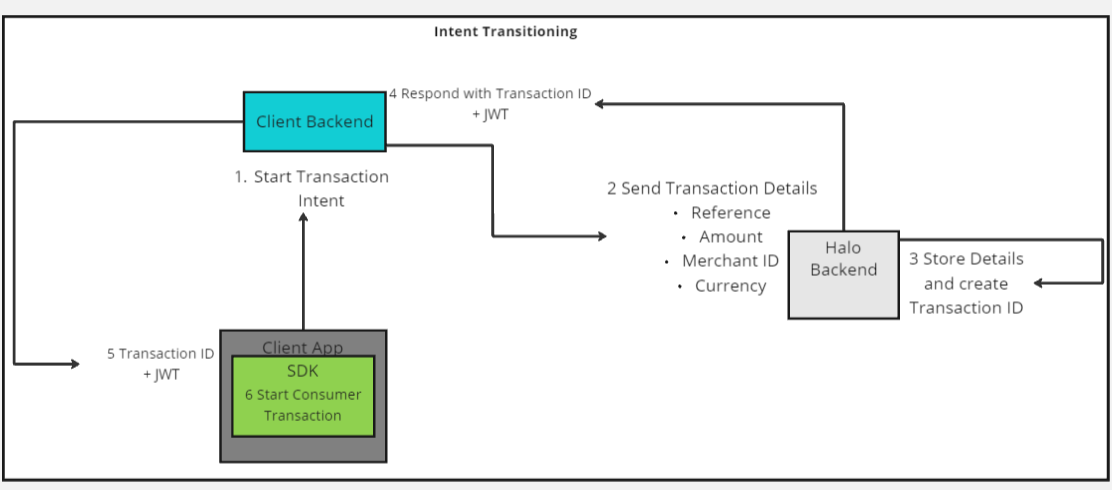
Once the consumer transaction ID and the JWT are received by the Halo.Go/Halo.Link app, the following takes place:
- The app will validate the JWT and the consumer transaction ID.
- The app will then request transaction details from the Halo backend using the consumer transaction ID as a reference and the JWT as auth.
- The Halo backend will return the transaction details if the transaction has not expired and if the JWT is valid.
- The app will then begin processing the payment by fetching transaction configs and initiating a card read.
- After the consumer has successfully tapped their card on the device, the app will then display the transaction result to the user and return control back to the customer app that initiated the intent transaction with a success or error code.
Approach 1.2: Constant Merchant Id Transaction
Note: This approach is useful for customers that have a single merchant account that can receive a transaction request. This is only available for tap intent transactions, not TT3 and deeplinking as of yet.
- Customer app makes a call to the customer backend to get an intent session token which will be used for all transactions, if it has not already been fetched. This token has a min expiry of 1 hour and a max expiry of 12 hours.
- Customer app checks if the session token has not expired and then creates an intent to the Halo.Go/Halo.Link app with the transaction details:
- unique transaction reference
- currency code
- transaction amount
- jwt session token
- The customer app waits for the Halo.Go/Halo.Link app to return control back to the customer app with a success or error code.
Once the transaction details are received by the Halo.Go/Halo.Link app, the following takes place:
- The app will validate the JWT session token and transaction details.
- The app will then fetch transaction config if it has not been fetched before, and caches this config.
- The app will initiate a card read and wait for the consumer to tap their card on the device to process the payment.
- The app will then display the transaction result to the user and return control back to the customer app that initiated the intent transaction with a success or error code.
2. Android Intents API
Steps in this section:
- Retrieve a
Transaction IDand paymentJWTfrom the Halo Backend. - Retrieve an
Intent Session Tokenfrom the Halo Backend. - Send an Intent request to the Halo.Go/Halo.Link application.
1. Retrieve a Transaction ID and JWT from Halo Backend
Let’s take a closer look at the API request.
POST https://kernelserver.{env}.haloplus.io/consumer/intentTransaction
The call to the Halo Dot Backend to initiate an Intent Transaction.
Path Parameters
| Name | Type | Description |
|---|---|---|
| env* | String | The backend environment [dev, qa, prod] |
Headers
| Name | Type | Description |
|---|---|---|
| Content-Type* | String | Content Type of the Request: application/json |
| x-api-key* | String | The API Key retrieved from the Merchant Portal (JWT can be used instead) |
| Authorization* | String | The JWT retrieved from logging in. (API Key can be used instead) |
Request Body
| Name | Type | Description |
|---|---|---|
| merchantId* | String | Merchant ID from Merchant Portal |
| paymentReference* | String | Reference of the transaction |
| amount* | String | Amount of the transaction (100.01) |
| timestamp* | String | ISO Standard Timestamp |
| currencyCode* | String | ISO Standard Currency Codes |
- 200: OK Intent Transaction JWT
{
    "id": "ffe12ca8-61e6-48f9-b09c-537818652988",
    "token": "eyJhbGciOiJSUzUxMiIsInR5cCI6IkpXVCJ9.eyJ1c3IiOiJoYWxvIiwiYXVkX2ZpbmdlcnByaW50cyI6InNoYTI1Ni96YzZjOTdKaEtQWlVhK3JJclZxamtuREUxbERjREs3N0c0MXNEbysxYXkwPSIsImtza19waW4iOiJzaGEyNTYvMVpuYTRUNlBLY0ozS3EvZGJWeWxiOG42MmovQWRRWVV6V3JqLzRzazVROD0iLCJtZXJjaGFudElkIjozMTcsImlhdCI6MTY3NTMzMzQyMCwiZXhwIjoxNjc1MzM0MzIwLCJhdWQiOiJrZXJuZWxzZXJ2ZXIucWEuaGFsb3BsdXMuaW8iLCJpc3MiOiJhdXRoc2VydmVyLnFhLmhhbG9wbHVzLmlvIiwic3ViIjoiYzQwMWIxYTYtNDI5Ny00NDM1LTg3OWItMDAyNTZhY2E4N2NjIn0.fCsDOSlkOz2nqjAohFYZNIO6f5cp4xbLer6s4o9BVJckoPRwxShdQLBxOySoYhioZ2WaYWFO-qhxDQjQG8RsPYByGsgIgQtVRaudS_IGI4Xv0KG8p0A9isX8jlw8KEeZwEuaj-zHUg4DAO4n3ydVAd3NjM1oysMKUbdn5MmW-wH7keutNCKtq9qF_hF0A8s3rUCO8UsB5QuXzz18VfPFe6fs3LoOGMHiKvgRWlhpKhrfXWQAw8vpwCLeY58vfa8LFGixMS526322s_dGTxkKC5f366GBWgoqHDyporidblCy64T5MbgifL41kiXahNQs6B4eLmuWeUTosHQ6jUajiEsa61QnUY1K9Pv3kT7bFDYy4Hvu2mdktzpV2p6MpM9gH3E4LLZGKhOJLjkf8LP7NsE-h4aN1XlKHJmMex8yMaAgV-_wxLCDPrK0Q7KgKGTNRByi8HkluhYYuMlslXXjN13ff8alMxCEBeyrkubi_X-tlTeilSmEF1tbWZ4WYiUfbNNqsfFDBKfErQc8dpJz22ou2DxyBd8_esBG1aEv4c5dIPciu_i2vG6FQADW_CNHmc01UnfymyReatc1c0WzFQS_OmoS3yaxymnvlCY_pD_bcZUr-5s60IQnu1D1wCeRfM1QE6-xSJvWx7sbXpbdNGbv1_PFM4xQTsuE6fBxzis"
}
2. Retrieve an Intent Session Token from the Halo Backend
Let’s take a closer look at the API request.
POST https://authserver.{env}.haloplus.io/refresh/intentSessionToken
The call to the Halo backend to retrieve an Intent Session Token.
Path Parameters
| Name | Type | Description |
|---|---|---|
| env* | String | The backend environment [dev, qa, prod] |
Headers
| Name | Type | Description |
|---|---|---|
| Content-Type* | String | Content Type of the Request: application/json |
| x-api-key* | String | The API Key retrieved from the Merchant Portal (JWT can be used instead) |
| Authorization* | String | The JWT retrieved from logging in. (API Key can be used instead) |
Request Body
| Name | Type | Description |
|---|---|---|
| expiryMinutes | Number | Duration for which the intent session token should last before it expires. If not provided, the session token will expire after 1 hour/60 minutes. If specified please note the the min value is 60 minutes and the max value is 720 minutes. |
- 200: OK Intent Session Token Result
{
    "token": "eyJhbGciOiJSUzUxMiIsInR5cCI6IkpXVCJ9.eyJ1c3IiOiJoYWxvIiwiYXVkX2ZpbmdlcnByaW50cyI6InNoYTI1Ni96YzZjOTdKaEtQWlVhK3JJclZxamtuREUxbERjREs3N0c0MXNEbysxYXkwPSIsImtza19waW4iOiJzaGEyNTYvMVpuYTRUNlBLY0ozS3EvZGJWeWxiOG42MmovQWRRWVV6V3JqLzRzazVROD0iLCJtZXJjaGFudElkIjozMTcsImlhdCI6MTY3NTMzMzQyMCwiZXhwIjoxNjc1MzM0MzIwLCJhdWQiOiJrZXJuZWxzZXJ2ZXIucWEuaGFsb3BsdXMuaW8iLCJpc3MiOiJhdXRoc2VydmVyLnFhLmhhbG9wbHVzLmlvIiwic3ViIjoiYzQwMWIxYTYtNDI5Ny00NDM1LTg3OWItMDAyNTZhY2E4N2NjIn0.fCsDOSlkOz2nqjAohFYZNIO6f5cp4xbLer6s4o9BVJckoPRwxShdQLBxOySoYhioZ2WaYWFO-qhxDQjQG8RsPYByGsgIgQtVRaudS_IGI4Xv0KG8p0A9isX8jlw8KEeZwEuaj-zHUg4DAO4n3ydVAd3NjM1oysMKUbdn5MmW-wH7keutNCKtq9qF_hF0A8s3rUCO8UsB5QuXzz18VfPFe6fs3LoOGMHiKvgRWlhpKhrfXWQAw8vpwCLeY58vfa8LFGixMS526322s_dGTxkKC5f366GBWgoqHDyporidblCy64T5MbgifL41kiXahNQs6B4eLmuWeUTosHQ6jUajiEsa61QnUY1K9Pv3kT7bFDYy4Hvu2mdktzpV2p6MpM9gH3E4LLZGKhOJLjkf8LP7NsE-h4aN1XlKHJmMex8yMaAgV-_wxLCDPrK0Q7KgKGTNRByi8HkluhYYuMlslXXjN13ff8alMxCEBeyrkubi_X-tlTeilSmEF1tbWZ4WYiUfbNNqsfFDBKfErQc8dpJz22ou2DxyBd8_esBG1aEv4c5dIPciu_i2vG6FQADW_CNHmc01UnfymyReatc1c0WzFQS_OmoS3yaxymnvlCY_pD_bcZUr-5s60IQnu1D1wCeRfM1QE6-xSJvWx7sbXpbdNGbv1_PFM4xQTsuE6fBxzis"
}
3. Send an Intent Request to the Halo Dot Go
We provide a sample code to help you with the intent request function call.
The code is available on the merchant portal ⇒ Help Center => App to App menu item.
Here are the key components of the code as a simple guide:
- Set key Halo intent constants
    companion object {
        private const val HALO_ACTION = "za.co.synthesis.halo.transaction"
        private const val HALO_REQUEST_CODE = 38
    }
- Check if the Halo.Go/Halo.Link app is installed
    private fun isHaloInstalled(): Boolean {
        val activities = packageManager.queryIntentActivities(Intent(HALO_ACTION), 0)
        return activities.size > 0
    }
- Create a function that will call Halo.Go/Halo.Link through an intent
- Approach 1: Merchant Id Configurable Transaction
- Approach 2: Constant Merchant Id Transaction
    private fun openHaloAppForTransaction(transactionId: String, jwt: String) {
        val haloPaymentIntent = Intent(HALO_ACTION).apply {
            putExtra("is_tap", true)
            putExtra("transaction_id", transactionId)
            putExtra("jwt", jwt)
        }
        startActivityForResult(haloPaymentIntent, HALO_REQUEST_CODE)
    }
    private fun openHaloAppForTransaction(transactionReference: String, amount: String, jwt: String) {
        val haloPaymentIntent = Intent(HALO_ACTION).apply {
            putExtra("is_tap", true)
            putExtra("paymentAmount", amount)
            putExtra("currencyCode", "ZAR")
            putExtra("merchantReference", transactionReference)
            putExtra("jwt", jwt)
        }
        startActivityForResult(haloPaymentIntent, HALO_REQUEST_CODE)
    }
- Handle the result of the intent call
    override fun onActivityResult(requestCode: Int, resultCode: Int, data: Intent?) {
        super.onActivityResult(requestCode, resultCode, data)
        if (requestCode == HALO_REQUEST_CODE) {
            val transactionId = data?.getStringExtra("result_transaction_id")
            val transactionResultType = data?.getStringExtra("result_transaction_type")
            val transactionErrorCode = data?.getStringExtra("result_transaction_error_code")

            if (resultCode == Activity.RESULT_OK) {
                Toast.makeText(
                    this,
                    "Transaction success, transactionId = $transactionId",
                    Toast.LENGTH_SHORT
                ).show()
            } else {
                Toast.makeText(this, "Transaction Result: $transactionResultType with Error Code: $transactionErrorCode", Toast.LENGTH_SHORT).show()
            }
            return
        }
    }
The transaction result intent will have the following extras:
| Extra Name | Extra Value | Description |
|---|---|---|
| "result_transaction_id" | A UUID transaction reference. Returned when available. | This the Halo transaction reference that is used in the get transaction status endpoint call. |
| "result_transaction_type" | The transaction result type returned as a string. | The transaction result type may have the following values: Approved, Declined, CardTapTimeOutExpired, NetworkError, ProcessingError, Cancelled, TryAnotherCard, NFCDisabledError, NotAuthenticated, Indeterminate, DuplicateMerchantTransactionReferenceSupplied, InvalidJWT. |
| "result_transaction_error_code" | The Halo Transaction Error Code as an Integer. | The Halo Error Code may be created by the Halo.Link app, Halo.SDK or the Halo Backend. Please see the table below as reference. |
A reference to the relevant Halo Error codes for this integration:
| Error Code | Description |
|---|---|
| 0 | OK |
| 1 | Declined |
| 2 | DeclinedOffline |
| 3 - 100 | Device Security Errors |
| 100 | Unauthorised |
| 105 | BlockedUser |
| 106 - 116 | Device Security Errors |
| 117 | JWTInvalid |
| 118 | JWTExpired |
| 119 - 123 | Merchant Errors |
| 124 | DuplicateMerchantReference |
| 125 - 299 | Server Errors |
| 300 | NFCDisabled |
| 301 | InvalidSystemState |
| 302 | InvalidCurrency |
| 303 | InvalidAndroidVersion |
| 304 | ErrorParsingJWT |
| 305 | NetworkError |
| 306 - 310 | Server Security Errors |
| 311 | GooglePlayUnavailable |
| 312 - 316 | Device Security Errors |
| 317 | CancelledTransaction |
| 318 | CardTapTimeoutExpired |
| 319 | TransactionError |
| 320 - 323 | Device Security Errors |
| 399 | SystemNotInitialised |
| 401 | CameraPermissionNotGranted |
| 402 | AccessibilityServiceBlocksPin e.g. a screen overlay has been detected. |
| 403 | DeveloperOptionsBlockPin |
| 404 - 405 | Server and Device Errors |
| 410 | InvalidTransactionReference |
| 500 and over | Out of Scope |
3. Deeplinking
1. Retrieve a Transaction Deep Link from the Halo Backend
You will need a API Key and Merchant ID from the Merchant Portal for this API call. The response will contain a deep link that can be used to invoke the Halo.Go/Halo.Link app.
Let’s take a closer look at the API request.
POST https://kernelserver.{env}.haloplus.io/consumer/qrCode
The call to the Halo backend to retrieve a deep link.
Path Parameters
| Name | Type | Description |
|---|---|---|
| env* | String | The backend environment [dev, qa, prod] |
Headers
| Name | Type | Description |
|---|---|---|
| Content-Type* | String | Content Type of the Request: application/json |
| x-api-key* | String | The API Key retrieved from the Merchant Portal (JWT can be used instead) |
| Authorization* | String | The JWT retrieved from logging in. (API Key can be used instead) |
Request Body
| Name | Type | Description |
|---|---|---|
| merchantId* | Integer | Merchant ID from Merchant Portal |
| paymentReference* | String | Reference of the transaction |
| amount* | String | Amount of the transaction (100.01) |
| timestamp* | String | ISO Standard Timestamp |
| currencyCode* | String | ISO Standard Currency Codes |
| isConsumerApp* | Boolean | Indicate if the call is for a Consumer App |
| image* | JSON | Set to true to generate a QR code - { "required": false } |
- 200: Ok Deep link to invoke Halo.Go/Halo.Link
- 200: OK Deep link to invoke Halo.Go/Halo.Link with base64
{
    "url": "https://halompos.page.link/DYfL4EZEzvAzBfBAS",
    "reference": "c9e1were-8156-444c-894d-e065d71366a6"
}
{
    "qrCode": "data:image/png;base64,..."
    "url": "https://halompos.page.link/DYfL4EZEzvAzBfBAS",
    "reference": "c9e1were-8156-444c-894d-e065d71366a6"
}
2. Use the Generated URL to call the Halo Dot Go application
The generated link returned by the API call can then be used to invoke the Halo.Go/Halo.Link application and start process transactions.
Should you pass in the image param in the body, you will then be able to retrieve the base64 encoded QrCode image. This can be used to scan the image and open the payment application with the payment details specified in the request.
4. Applinking
1. Retrieve a Transaction Applink from the Halo Backend
Note: This endpoint replaces the deprecated
/consumer/qrCodeendpoint.
You will need an API Key and a Merchant ID from the Merchant Portal for this API call. The response will contain a link that can be used to invoke the Halo.Go/Halo.Link app.
Let’s take a closer look at the API request.
POST https://kernelserver.{env}.haloplus.io/consumer/applink
The call to the Halo backend to retrieve an Applink.
Path Parameters
| Name | Type | Description |
|---|---|---|
| env* | String | The backend environment [dev, qa, prod] |
Headers
| Name | Type | Description |
|---|---|---|
| Content-Type* | String | Content Type of the Request: application/json |
| x-api-key* | String | The API Key retrieved from the Portal (JWT can be used instead) |
Request Body
| Name | Type | Description |
|---|---|---|
| merchantId* | Integer | Merchant ID from Portal |
| paymentReference* | String | Reference of the transaction |
| amount* | String | Amount of the transaction (100.01) |
| timestamp* | String | ISO Standard Timestamp |
| currencyCode* | String | ISO Standard Currency Codes |
| isConsumerApp* | Boolean | Indicate if the call is for a Consumer App |
| image* | JSON | Set to true to generate a QR code - { "required": false } |
- 200: Ok Applink to invoke Halo.Go/Halo.Link
- 200: OK Applink to invoke Halo.Go/Halo.Link with base64
{
    "url": "https://go.merchantportal.dev.haloplus.io/c9e1were-8156-444c-894d-e065d71366a6?env=kernelserver.{env}.haloplus.io",
    "reference": "c9e1were-8156-444c-894d-e065d71366a6"
}
{
    "qrCode": "data:image/png;base64,..."
    "url": "https://go.merchantportal.dev.haloplus.io/c9e1were-8156-444c-894d-e065d71366a6?env=kernelserver.{env}.haloplus.io",
    "reference": "c9e1were-8156-444c-894d-e065d71366a6"
}
2. Use the Generated URL to call the Halo Dot Go application
The generated link returned by the API call can then be used to invoke the Halo.Go/Halo.Link application and start processing transactions.
Should you pass in the image param in the body, you will then be able to retrieve the base64 encoded QrCode image. This can be used to scan the image and open the payment application with the payment details specified in the request.
5. Conclusion
That concludes the guide on integrating the Halo.Go/Halo.Link app into your payment flow. For any questions, please do not hesitate to reach out to the Halo Dot Team.